
Cookies at Aiden

By clicking “Accept” , you agree to the storing of cookies on your device to enhance site navigation, analyze site usage, and assist in our marketing efforts. View our  Privacy Policy for more information.

Cookie preferences
Accept
Cookie preferences

Cookies ensure that you do not have to enter the same data every time you visit our website. They also provide us with insight into how you use our site, which contributes to continuous improvements.

Essential cookies
Always active
These cookies are necessary for the website to function properly and therefore cannot be turned off.
Marketing cookies
These cookies help us show relevant advertisements and offers that may be of interest to you.
Personalization cookies
These cookies help us remember choices you make (such as your username, language, or the region you are in) and provide enhanced, more personal features.
Analytics cookies
These cookies collect anonymized data to gain insight into how our website is used with the goal of improving the user experience.
Save preferences
Accept all
How it works
For online shoppersFor e-commerce teams
Industries
Electronics & AppliancesHealth & NutritionHome & LivingGarden & OutdoorsDIYSports & CyclingFashion & BeautyB2B
Customer stories
Case studiesStore testimonialsUser reviews
Demo store
Resources
BlogRelease LogHelp CenterContact
Login
Book your demo
EN
Dutch
English
Book a demo
Improvement
Bug fix
Update

🧑‍🎨 Complete the brand experience with custom fonts in Aiden

You can now use your own fonts in your Aiden product finders. With this you can offer your customers a unified brand experience throughout your website.

February 5, 2026

You can now match yourproduct finders with your brand down to the last detail! Use the new custom fonts feature to add your own font and use it in all your product find. Read on the find out how this works.

‍

Add a custom font‍

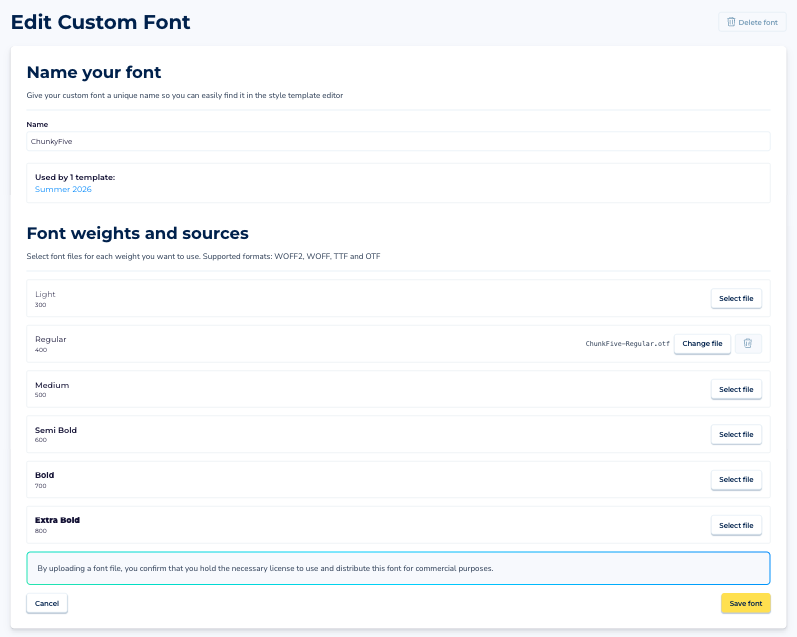
1. You can find the custom font option in the Look & Feel section of your Aiden environment.

2. Click “New custom font” to get started. If you have a lot of style templates, you may need to scroll down a bit.

‍

3. Give your font a recognisable name, you'll use it to select the font in your style templates.

4. Upload a font file for each font weight you want to use. You must upload at least one file. We support WOFF2, WOFF, OTF, and TTF files.
‍

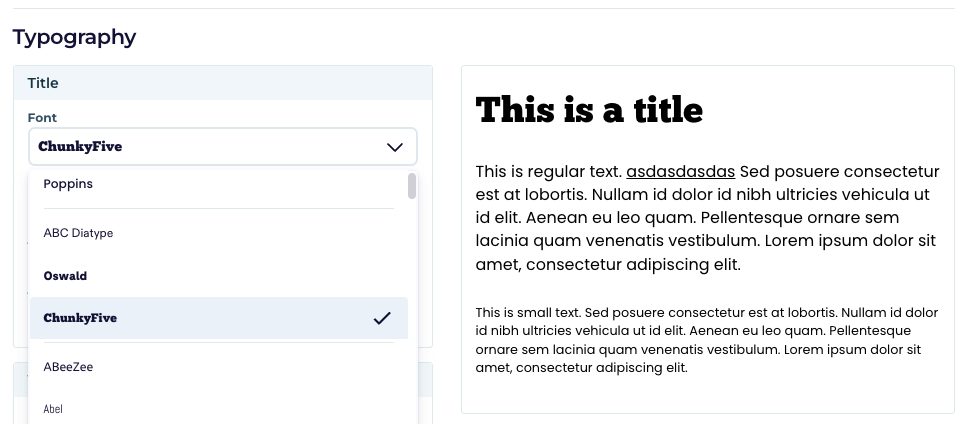
Using a custom font in a product finder

To use your custom font, simply select it in your style template. Once you publish the template, your product finders will use the custom fo
Stop losing customers to choice paralysis

Empower your shoppers with tailored product advice (at scale) to significantly increase conversion rates.

Book your demo
You'll be able to pick a time in the next step.
Customers who can’t decide, won’t buy. Invest in guided selling and offer personal advice to structurally boost conversions.
Resources
Case studiesBlogHelp centerWhy Aiden?What is guided selling?What is conversational commerce?
Product
FeaturesProduct tourWhat's new?Book your demoWhat stores sayWhat shoppers say
Industries
Electronics & AppliancesHealth & NutritionHome & LivingGarden & Outdoors
Company
About usBookCareersPartnersPartnersContact
© 2025 Aiden. All rights reserved.
Privacy PolicyTerms and Conditions
Made by Unmuted